Settings dialog
From the Settings dialog you can do the following:
-
Configure Purepoint settings
-
Apply tracks settings
-
Record snapshots
-
Define quick select settings
General
Information
The Show Properties on Objects and Stop rotation at ground-Level settings are saved when a project file is generated and are restored when a project file is loaded, see "Settings included in project file".
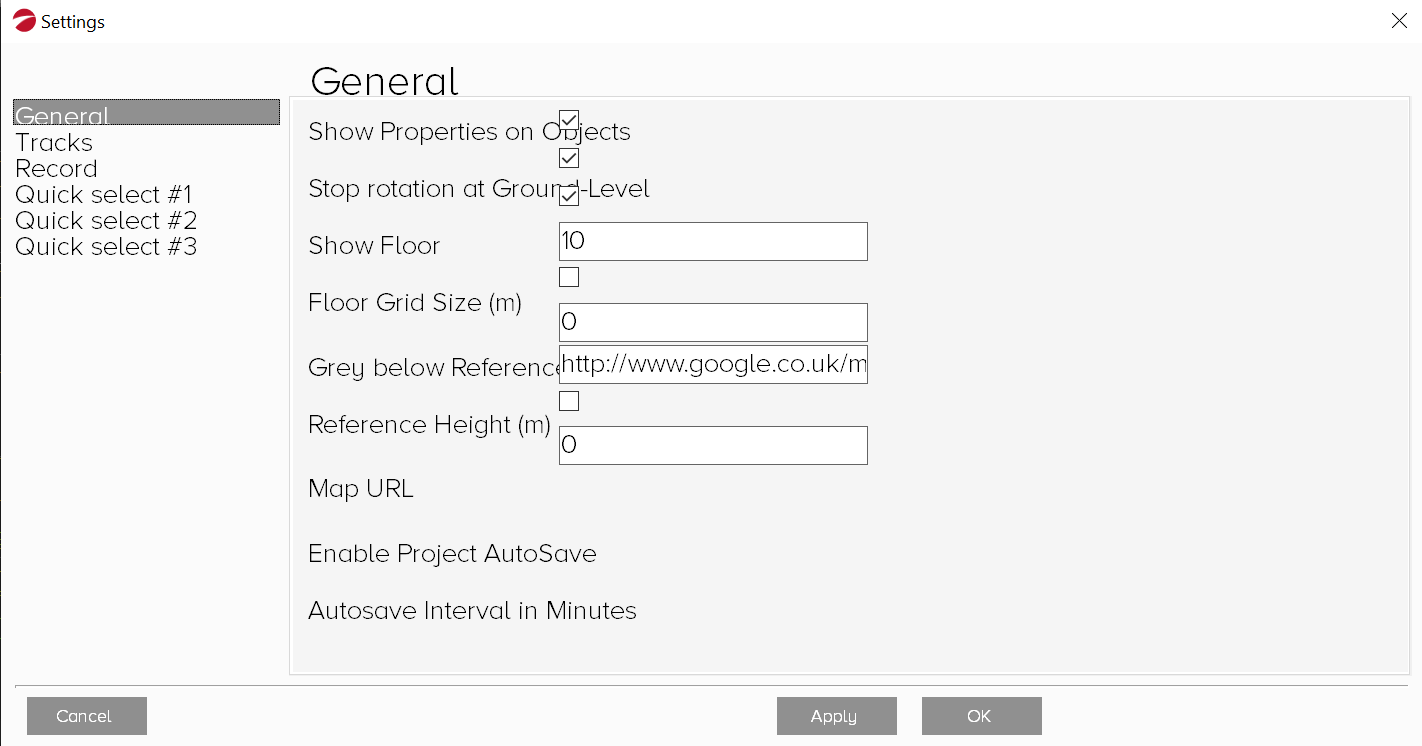
From the General tab you can configure the following settings:
-
Show Properties on Objects: Select to show properties on the side of geometric objects
-
Stop rotation at ground-Level: Select to enable rotation at ground-level
-
Show Floor: Select to enable the grid
-
Floor grid Size (m): Define the size of each grid cell
-
Grey below Reference: Select to grey-out points below the reference surface
-
Reference Height (m): The vertical datum from a point of interest to a reference surface
-
Map URL: Define a map URL for use with geo-reference data, see "Geo-reference data"
-
Enable Project AutoSave: Select to enable autosaving
-
Autosave Interval in Minutes: Define how frequently the project auto saves
Tracks
Information
Track settings are saved when a project file is generated and are restored when a project file is loaded, see "Settings included in project file".
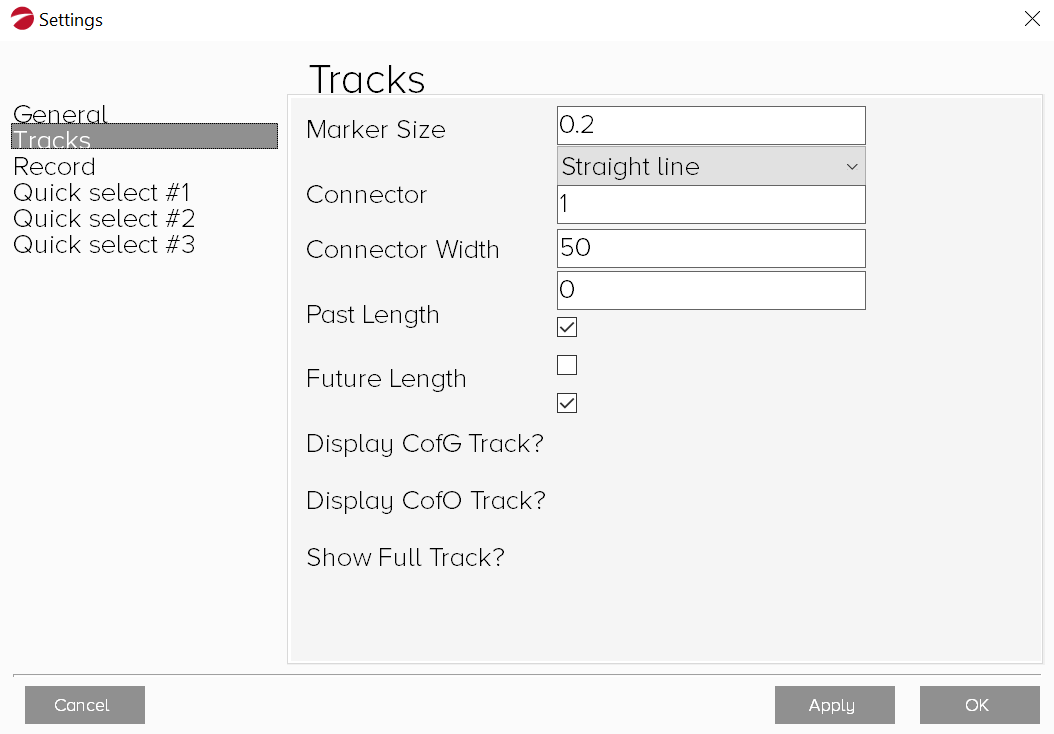
From the Tracks tab you can configure the following settings:
-
Marker Size: Define the size of the markers that make up the points on a track measure, in metres
-
Connector: From the drop-down, select the track display format (None, Straight line, or Curved)
-
Connector Width: Define the width of the line used to display tracks
-
Past Length: Define the number of frames into the past used to display the track
-
Future Length: Define the number of frames into the future used to display the track
-
Display CofG Track?: Select to display tracks through the CoG of objects
-
Display CofO Track?: Select to display tracks through the Centre of Objects (CoO)
-
Show Full Track?: Select to display the track in its entirety
Information
The settings shown in see "Settings dialog" are default.
Record
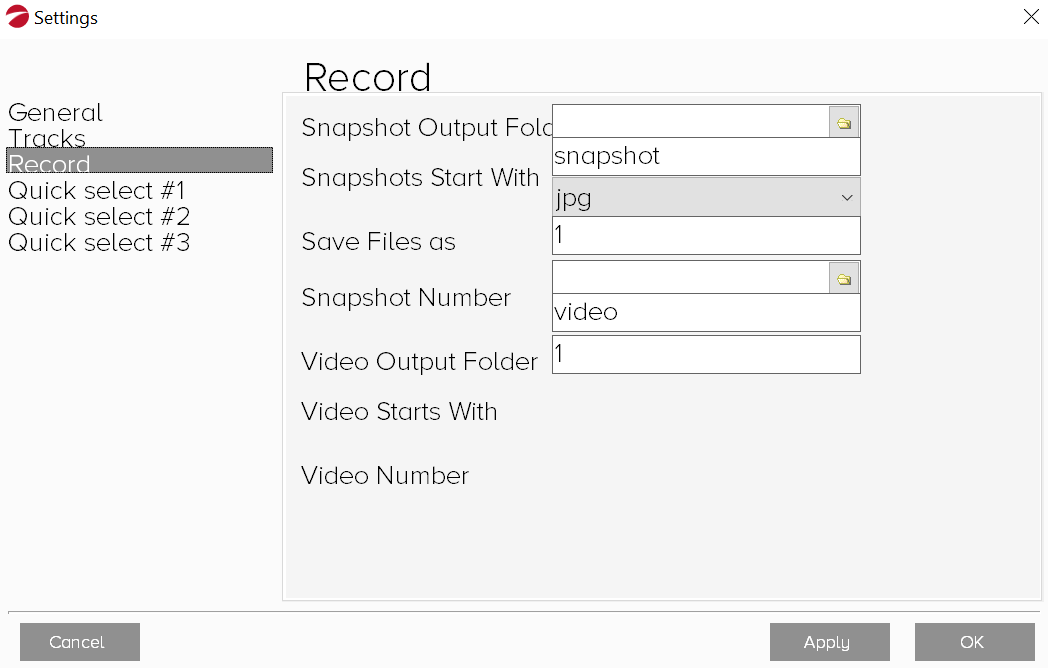
From the Record tab you can configure the following snapshot settings:
-
Snapshot Output Folder: Define the snapshot destination folder
-
Snapshots Start With: Define the file nomenclature
-
Save Files as: Define the file type (.jpg or .png)
-
Snapshot Number: Define the snapshot number
-
Video Output Folder: Define the video destination folder
-
Video Starts With: Define the file nomenclature
-
Video Number: Define the video number
Quick select
Information
Point-cloud gradient settings are saved when a project file is generated and are restored when a project file is loaded, see "Settings included in project file".
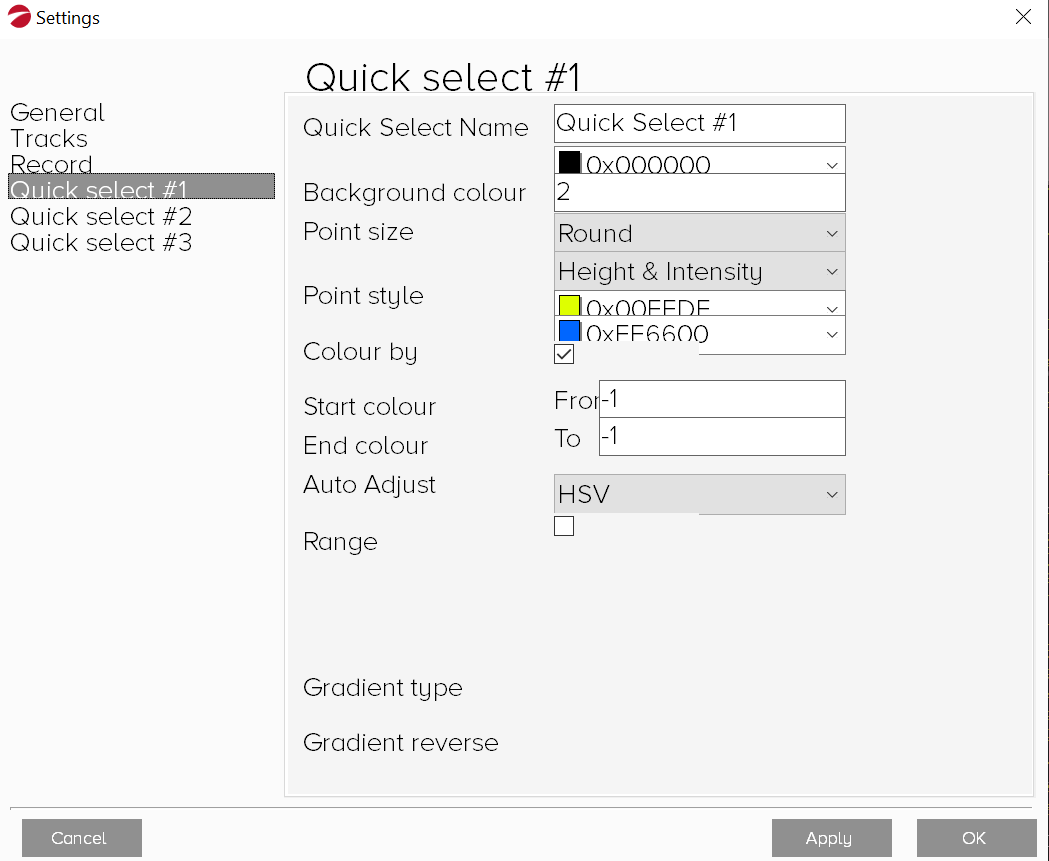
From the Quick select #1, Quick select #2 and Quick select #3 tabs you can specify the following color and style settings for the quick select buttons:
-
Quick Select Name: Define the quick select button name
-
Background color: Select the button background color
-
Point size: Define the point-cloud point size
-
Point style: Select the point-cloud point style
-
Color by: Select the point-cloud color conventions, for example, color by distance
-
Start color and End color: Select the point-cloud gradients
-
Auto Adjust: Select to automatically adjust the point-cloud color
-
Range: Define the point-cloud range
-
Gradient type: Select the point-cloud color gradient type
-
Gradient reverse: Select to invert the Start color and End color settings
